Disclaimer

How to word is a free Microsoft word tutorial. Microsoft is the registered trademark of Microsoft Company, which is not affiliated with and does not sponsor or endorse the services of howto-word.com.

Showing posts with label word keyboard shortcuts. Show all posts

MS Word shortcut of switching to another view when working on documents and Web pages

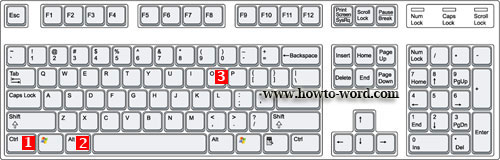
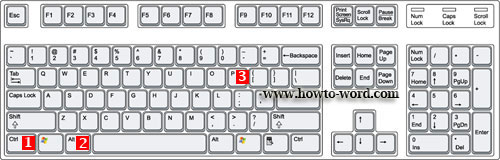
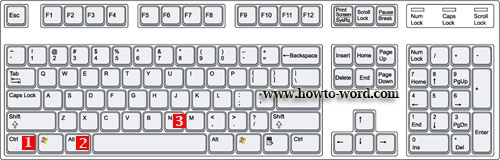
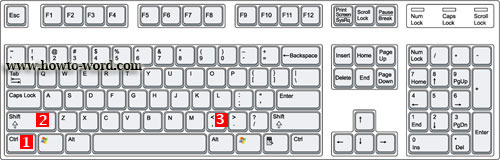
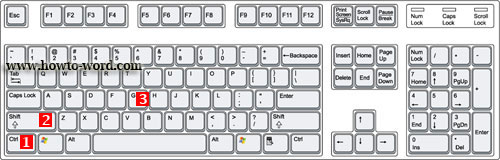
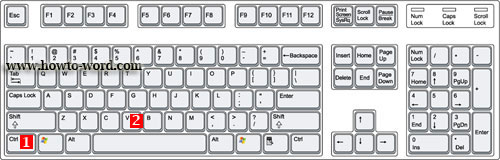
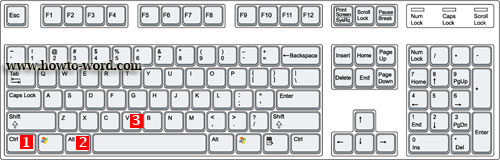
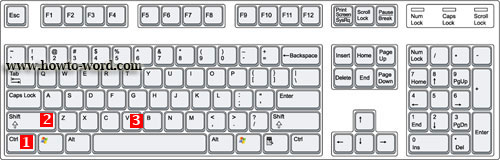
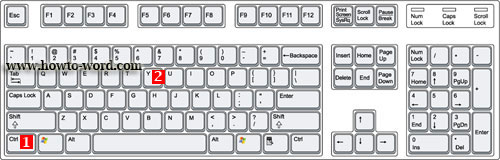
These are the short cut keys when you want to switch to Print Layout view, switch to Outline view and Switch to Draft view.

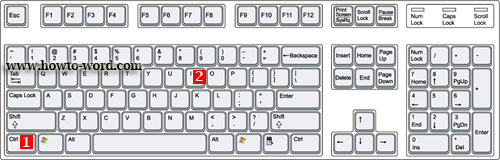
Switch to Outline view press CTRL+ALT+O

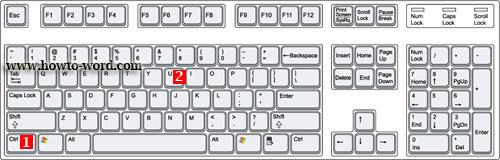
Switch to Print Layout view press CTRL+ALT+P

Switch to Draft view press CTRL+ALT+N

People who read this page also read
MS Word Hotkeys you must know when working with a text
Short cut keys to create, open, close, save and do more in MS Word
Basic MS Word short cut keys you should know

Basic MS Word short cut keys you should know

There are many of short cut keys in MS Word. To remember all of them can be a hard job. And because of this our ms word tutorial today will show you the basic MS Word short cut keys you should know.

If you want to..

Make letters bold. Press CTRL+B

Make letters italic. Press CTRL+I

Make letters underline. Press CTRL+U


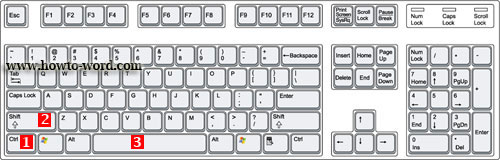
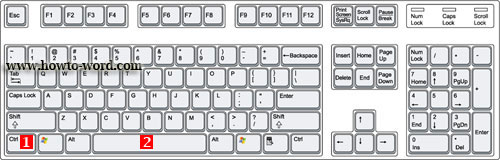
Create a nonbreaking space. Press CTRL+SHIFT+SPACEBAR

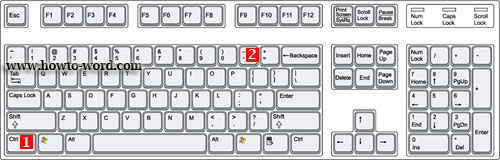
Create a nonbreaking hyphen. Press CTRL+HYPHEN

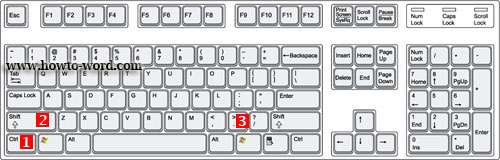
Decrease font size one value. Press CTRL+SHIFT+ <

Increase font size one value. Press CTRL+SHIFT+>

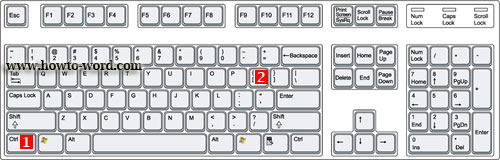
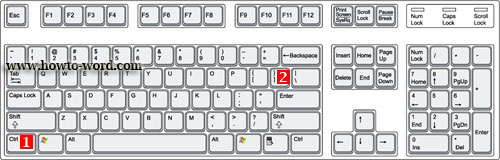
Decrease font size 1 point. Press CTRL+[

Increase font size 1 point. Press CTRL+]

Open the Word Count dialog box. Press CTRL+SHIFT+G

Remove paragraph or character formatting. Press CTRL+SPACEBAR

Copy the selected text or object. Press CTRL+C

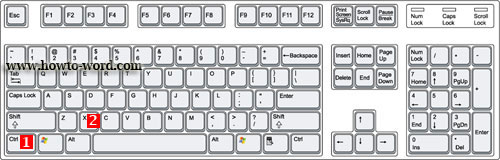
Cut the selected text or object. Press CTRL+X

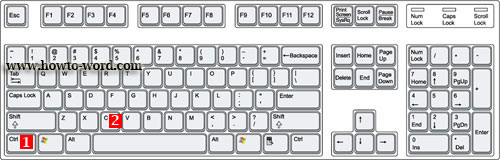
Paste text or an object. Press CTRL+V

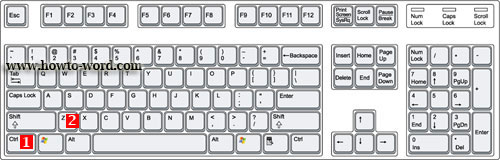
Paste special CTRL+ALT+V

Paste formatting only CTRL+SHIFT+V

Redo the last action. Press CTRL+Y

Undo the last action. Press CTRL+Z

How to move to another tab of the Ribbon.


Can you use your LEFT ARROW or RIGHT ARROW on your keyboard to make each tab of the Ribbon active or move to another tab of the Ribbon?

This is one of the Microsoft Word shortcuts I would like to show you. But let me tell you that this is a tutorial for word 2007 only. Why? because I didn't try other versions yet.^^'

Now let's see how to move to another tab of the Ribbon.

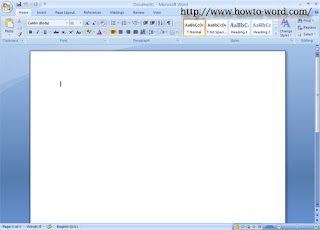
1. Open your Word 2007 first.


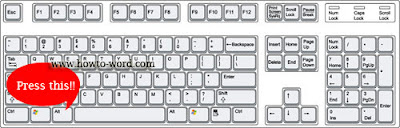
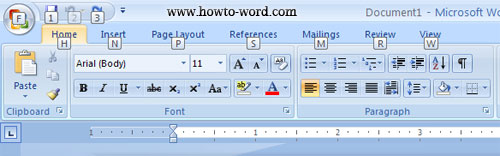
2. Then press 'Alt' on your keyboard.

Now it should look like this..


3. Then press 'LEFT ARROW' or 'RIGHT ARROW' on the keyboard and see now it's moving!!
Note: To cancel the action, just press 'Alt' on your keyboard again.


Frequently Asked Questions

         
How to remove paragraph symbol in word? Help!! Try fixing it but my vertical ruler still disappear!!  
         
What is the ribbon in Microsoft Word?