Disclaimer

How to word is a free Microsoft word tutorial. Microsoft is the registered trademark of Microsoft Company, which is not affiliated with and does not sponsor or endorse the services of howto-word.com.

Showing posts with label shortcuts in ms word. Show all posts

Hotkeys for the outline view when working with documents and web pages

When you work with a document or web page sometime you may need Hotkeys to help you finish your task quicker. In your computer keyboard there are a lot of function keys you need to remember. Yes, sometime it is too much to memorize all the shortcut keys in your head. But from now on, you don't need to memorize all shortcuts in ms word because we list many short cut keys for word on this website, howto-word.com!!

Our ms word tutorial on this page will talk about the hotkeys for the outline view when you have to work with documents and web pages.

All the shortcut keys are already listed for you below. If you need to..

Show the first line of body text or all body text. Press ALT+SHIFT+L
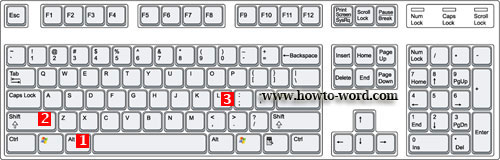
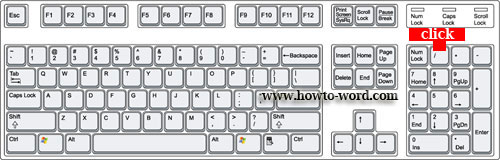
Hide or display character formatting. The slash (/) key on the numeric keypad
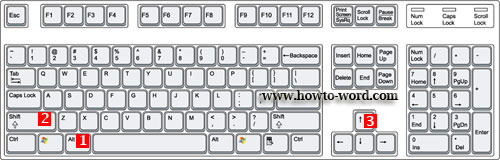
Move selected paragraphs up. Press ALT+SHIFT+UP ARROW
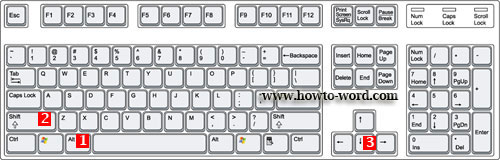
Move selected paragraphs down. Press ALT+SHIFT+DOWN ARROW
Show all headings with the Heading 1 style. Press ALT+SHIFT+1
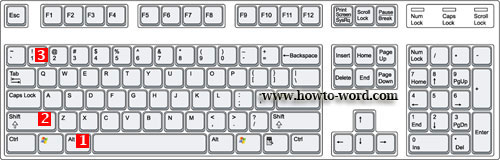
Show all headings up to Heading n. Press ALT+SHIFT+n
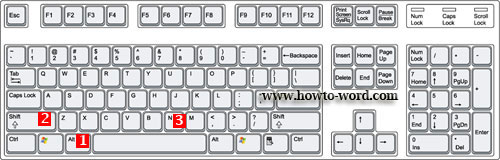
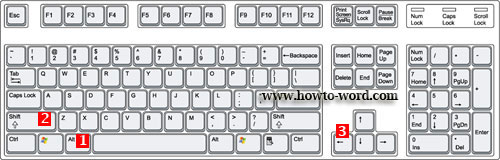
Promote a paragraph. Press ALT+SHIFT+LEFT ARROW
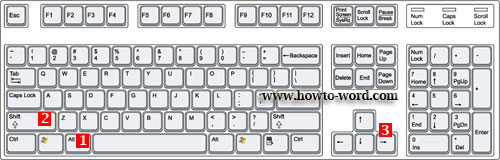
Demote a paragraph. Press ALT+SHIFT+RIGHT ARROW
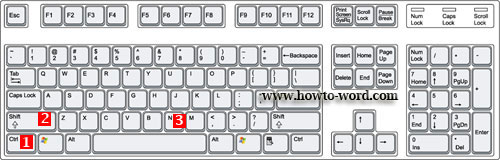
Demote to body text. Press CTRL+SHIFT+N
Expand text under a heading. Press ALT+SHIFT+PLUS SIGN
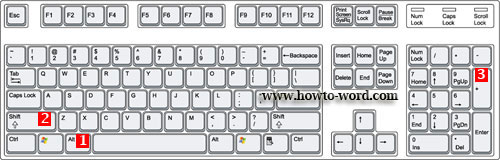
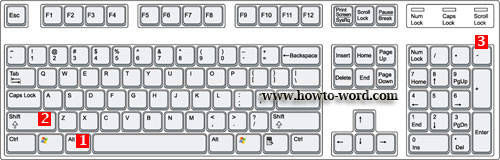
Collapse text under a heading. Press ALT+SHIFT+MINUS SIGN
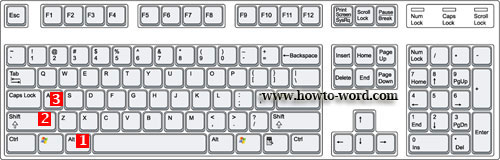
Expand or collapse all text or headings. Press ALT+SHIFT+A
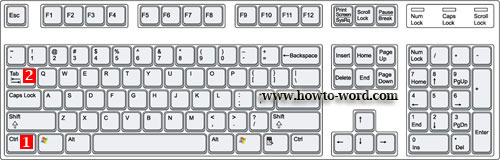
Insert a tab character. Press CTRL+TAB
That's all for the Hotkeys of the outline view when you have to work with a document or web page. I hope the shortcut keys listed on this page will has any useful for you.^^

People who read this page also read
Basic MS Word short cut keys you should know
Short cut keys to create, open, close, save and do more in MS Word
MS Word Hotkeys you must know when working with a text
MS Word shortcut of switching to another view when working on documents and Web pages
MS Word Hotkeys you must know when working with a text

Function keys in MS Word are many. Our MS Word tutorial on this page will show you the Word shortcuts that mostly use when we have to work with a text. This page will list hotkeys to find, repeat find, replace text and other activities in MS Word.

If you love to use PC shortcuts and now you are working on MS Word. The Microsoft Word shortcut keys provided on this page might be useful for you!!

Some of useful microsoft word hotkeys

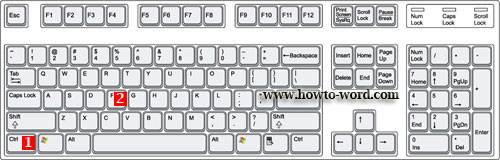
Find text, formatting, and special items. Press CTRL+F

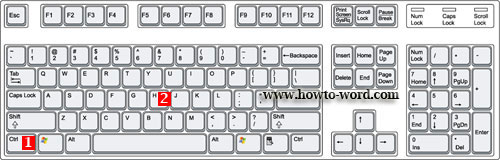
Repeat find (after closing Find and Replace window). Press CTRL+ALT+Y

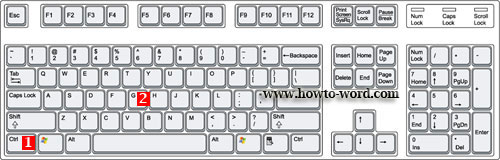
Replace text, specific formatting, and special items. Press CTRL+H

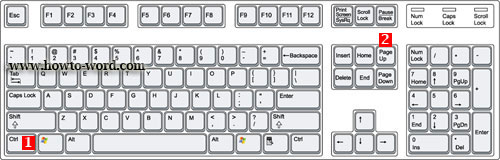
Move to the previous edit location. Press CTRL+PAGE UP

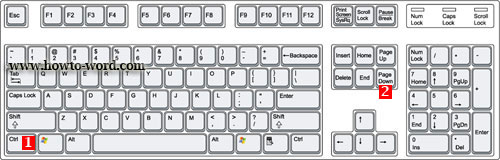
Move to the next edit location. Press CTRL+PAGE DOWN

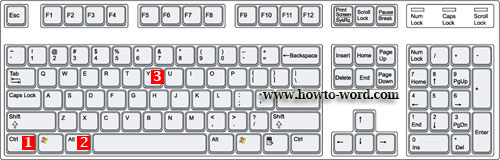
Go to a Page, Section, Line, Bookmark, Comment, Footnote, Endnote, Field, Table, Graphic, Equation, Object, Heading. Press CTRL+G

Switch between the last four places that you have edited. Press CTRL+ALT+Z

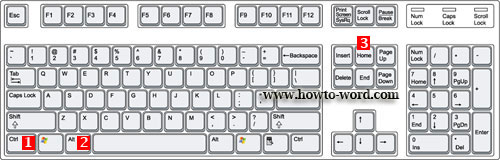
Open a list of browse options. Press the arrow keys to select an option, and then press ENTER to browse through a document by using the selected option. Press CTRL+ALT+HOME
There are many of Microsoft Word Hotkeys if you use them more often you will be able to use them easier.

Short cut keys to create, open, close, save and do more in MS Word

If you love to use the pc shortcuts and if you are looking for the shortcut keys in MS Word. These are the hotkeys we provided to you. Whether you will create, open, close, save or more  you can do it easily via our MS Word tutorial as details below.

If you want to..


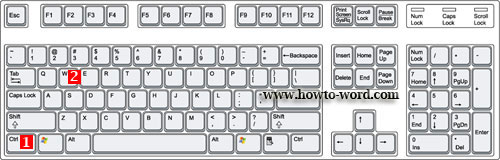
Close a document. Press CTRL+W 

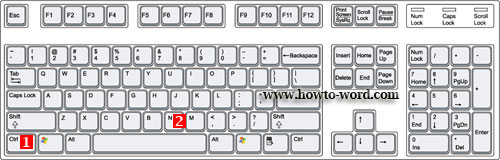
Create a new document of the same type as the current or most recent document. Press CTRL+N

Open a document. Press CTRL+O

Save a document. Press CTRL+S

Remove the document window split. Press ALT+SHIFT+C 

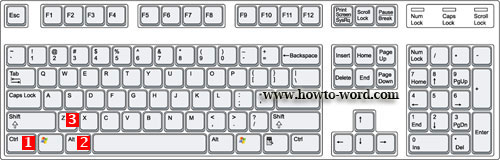
Split the document window. Press CTRL+ALT+S

Word keyboard shortcuts for the Ribbon User Interface - how to active a tab of the Ribbon without using the mouse!!


Hello and welcome, this is the tutorial for word 2007 which this page will mainly talk about the Microsoft Word shortcuts. As you are already know that there are many of keyboard shortcuts for Word. In this article I will show you some of them!!

No no no, no serious I promise it's fun!!

You might not know that in Word 2007 we use it everyday, there are something behind. If you just open the new document, type and save..there is no something new. Our MS Word tutorial will show you something that some of you may don't know this before!!


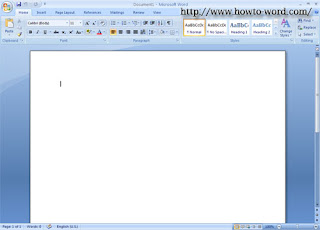
1. Now I open my MS word 2007 and it looks like this..(yeah there is nothing special, just what we have seen it everyday)

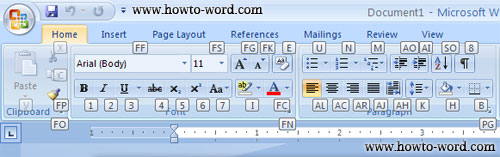
2. But check this out, see what happen when I press 'Alt' on my keyboard.
Wo-ho..

As shown on the picture above means that as long as you can see the small box appears -- as now there are F, 1, 2, 3, H, N, P, S, M, R, W place on each tab. Once you press a letter on your keyboard Word 2007 will take you to the tab under the small box letter and open it for you immediately!!

What to do if you want to use each tool under 'Home' tab without using the mouse?
As now we are under the 'Home' tab what you have to do is just press 'H' on your keyboard and you will see this..

Well, with the example above. You can do this step to find shortcuts for Microsoft Word on the Ribbon User Interface each tab easily!!
Note: To cancel the action just press 'Alt' on your keyboard again.


Frequently Asked Questions

         
How to remove paragraph symbol in word? Help!! Try fixing it but my vertical ruler still disappear!!  
         
What is the ribbon in Microsoft Word?