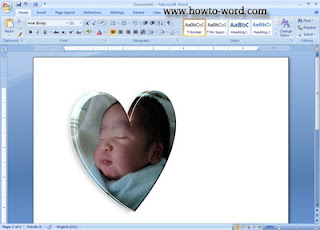
Looking for picture of the heart? Why don't try making it by yourself, it is easy and free!! No photo editing software needed all you need is only Word 2007!!
Our word 2007 tutorial today will show you how I made a photo in heart shape in Word 2007
1. Open your Word 2007.
2. Go to the 'Insert' tab.
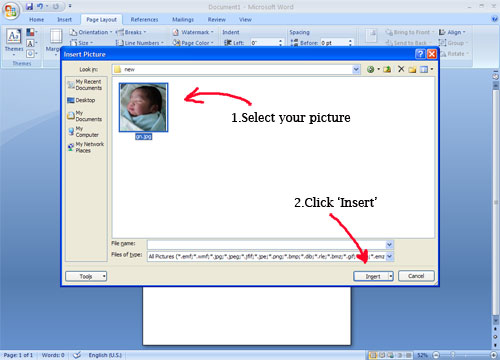
3. Click 'Picture'
4. Select your favorite file then click 'Insert'
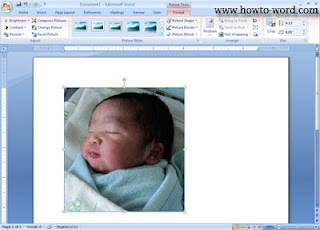
5. Then your Word 2007 will look like this..
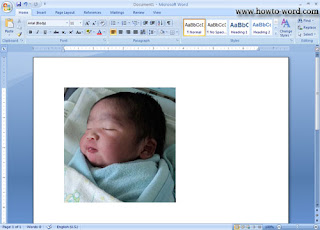
Note: If you click on any white area, your Word 2007 will look like this.. So you just click on the photo to turn your Word 2007 be like the above picture.
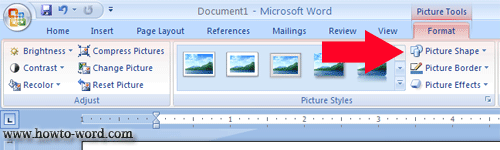
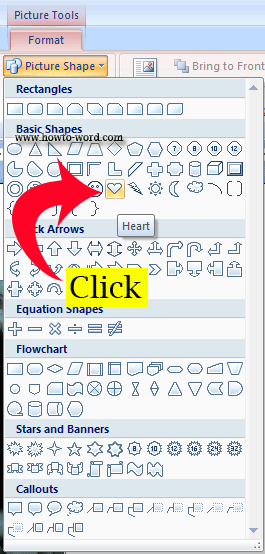
6. As step 5 (Or when you click on the photo) you will see the 'Format' tab look like this. Then you click on the 'Picture Shape' as show in the picture below.
7. Once you click on 'Picture Shape' you may notice that there are a lot of shapes there in a Picture Shape gallery. But as we are going to make a photo in heart shape so we select 'Heart' as show in the picture.
(Under the 'Basic Shapes' group)
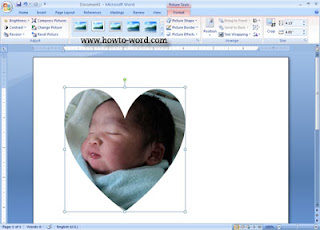
8. Now your picture will immediately look like this..
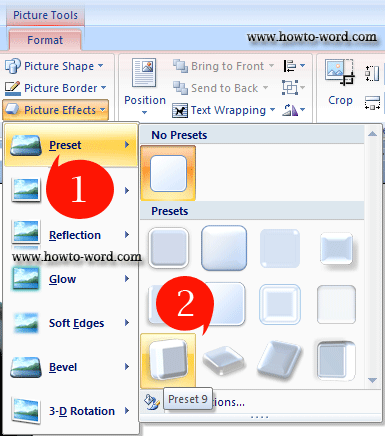
9. Finish? No, not yet. To make it more cool you have to go to the 'Picture Effects', click on it and just move the mouse over 'Preset', Word 2007 will automatically show you a 'Presets' gallery. Now just select the 'Preset 9', click it.
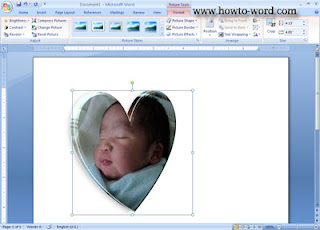
10. Then your Word 2007 will turn this!!
Note: If you click anywhere outside the photo your Word 2007 will look like this!! If you don't want to have a shadow for your image, we can say that our project now is complete. But to learn more how to add shadow for image, you have to continue read more ^^ (so you need to click on the image again to your photo be as the above.-- if it doesn't work, double click it!!)
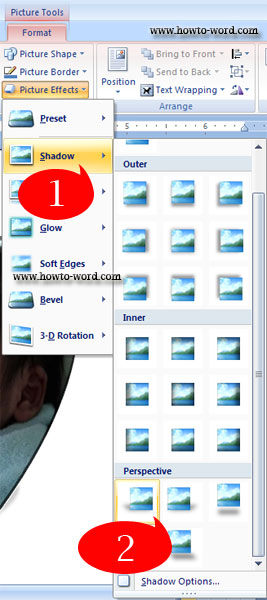
11. Now your picture be like step 10 (your photo already be selected). Under 'Picture Effects' move your mouse over 'Shadow' then under 'Perspective' click the first icon as its name 'Perspective Diagonal Upper Left', click on it.
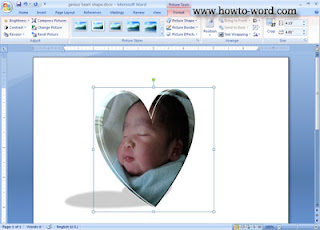
12. Then you got this picture...
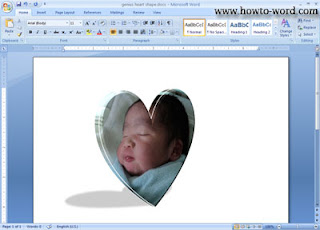
13. Click any white area outside the picture, you got this picture..and finished!!
That's all for how to do a photo in heart shape in Word 2007!! ^^