
Disclaimer

How to word is a free Microsoft word tutorial. Microsoft is the registered trademark of Microsoft Company, which is not affiliated with and does not sponsor or endorse the services of howto-word.com.

Showing posts with label Word 2007. Show all posts

How to password protect files


If you have a confidential document and you don't need anyone to open. You can help secure your entire document with a password. But how? The information to help you on this problem is ready below.

How to password protect files?

1. Open your document with Word 2007
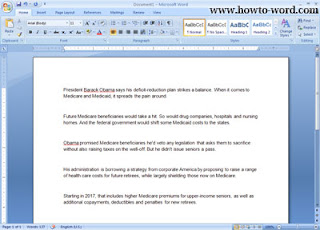
2. Click 'Microsoft Office' button.

Now your page should look like this.
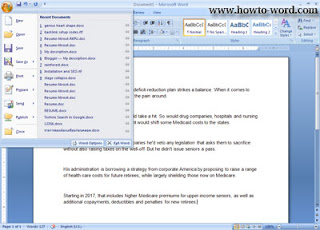
3. Then click 'Save as'.

Now your document should look like this.
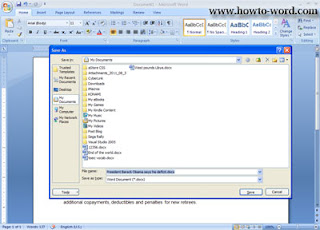
4. On your left hand-side click on 'Tools' button.

5. Now click 'General Options'.

6. You will see this window.
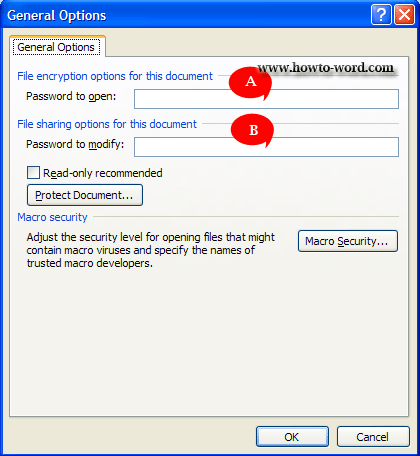
If you need other people enter a password before viewing the document, type a password in the 'Password to open' box (A).

If you need other people enter a password before saving changes to the document, type a password in the 'Password to modify' box (B).

7. To set a password for both before viewing the document and before saving changes to the document, type the passwords in A and B area, then click 'OK'

8. Now you will see the dialog box asking for your confirmation again. Read caution and click 'OK'.

Re-enter password to open
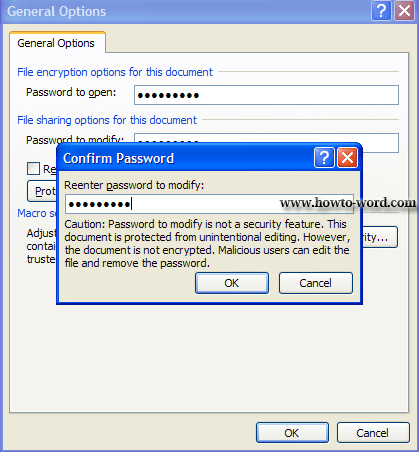
9. Now re-confirm password to modify (as in the above B area). Read caution and click 'OK'.

10. Now name your document and click 'Save'. -- Finished!!
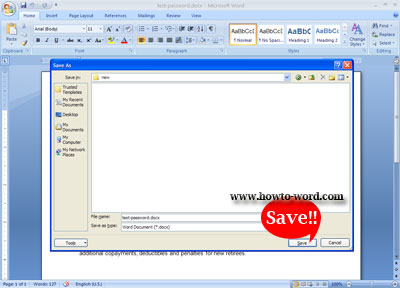

Now let's test our secret document to see if it is really work???
As I close the file (you have to close the file first to see a result if not you will see nothing change.) and re-open it again now it show this.
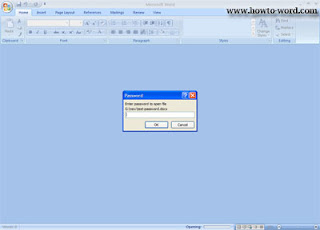
Not clear? Zoom it..
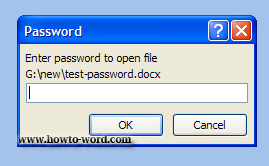
Try input the wrong password.
No..you can't access.
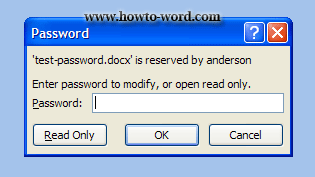
Now try the right one. (You need to close the program and re-open again to see the login panel.)
When you enter the right password MS Word will ask you to type the password again. Just type your password then click 'OK'.
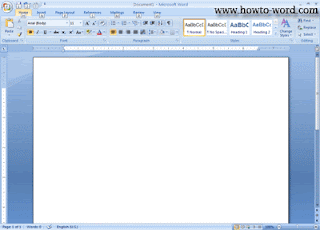
Then you will see your document!! It's work!! ^O^

Now you know how to lock document in Word. I hope you enjoy reading this article, now let's lock the Word documents!!

What to do when your mouse can't do a right click in Microsoft Word 2007

You have a PC and you have Microsoft Word 2007. You have a document that need to send to your boss by using Microsoft Word 2007 which need to use the shortcut menu for the selected command.
But unfortunately you mouse doesn't work. What should you do for this situation? This Microsoft Word 2007 tutorial will show you how.

1. Open the Microsoft Word 2007.


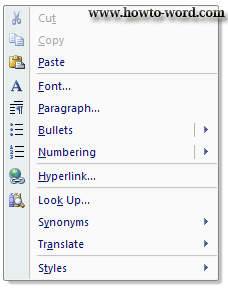
2. If your mouse works when you do a right click it will show a shortcut menu for the selected command like this.

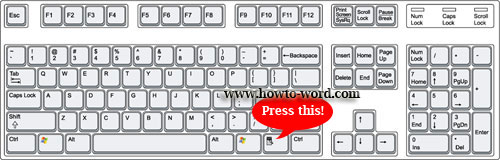
3. But if your mouse doesn't work. You may press this..


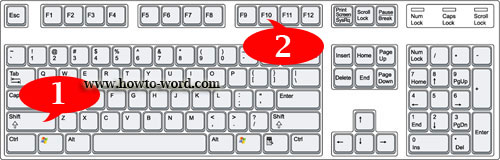
4. But if the keyboard button in step 3 broken. These are the buttons you have to press.


Yes, Shift + F10 when you press these buttons it shows the same result as you do right click or press the button in step 3. Try it yourself, it's fun!!

How to show or hide ribbon in word 2007


Do you like short cut keys? Especially for using with MS Word 2007. If your windows office contains word 2007 version and you love to use pc shortcuts. The tutorial for word 2007 on this page might be useful for you.

How to show or hide ribbon in word 2007?
You can do this by follow these simple steps.

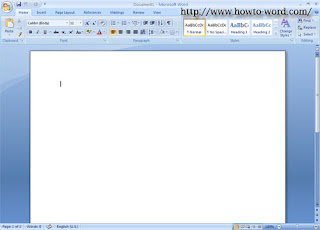
1. Open MS Word 2007


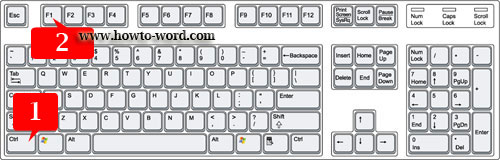
2. To show or hide ribbon press 'Ctrl' + F1 as show in the picture below.


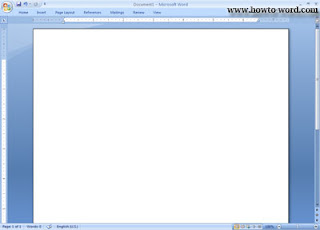
3. Then the ribbon in word 2007 now disappear!!


4. To turn to normal? just press 'Ctrl' + 'F1' on your keyboard again.

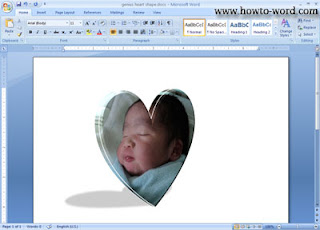
How to do a photo in heart shape by Word 2007


Looking for picture of the heart? Why don't try making it by yourself, it is easy and free!! No photo editing software needed all you need is only Word 2007!!

Our word 2007 tutorial today will show you how I made a photo in heart shape in Word 2007

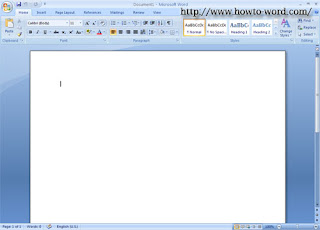
1. Open your Word 2007.


2. Go to the 'Insert' tab.

3. Click 'Picture'

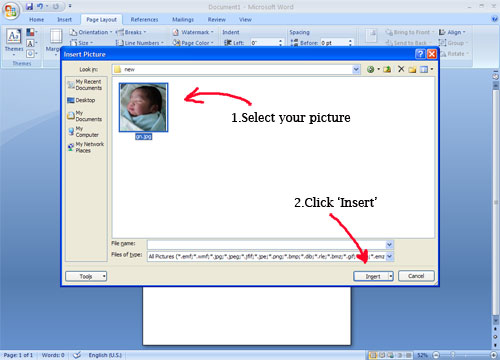
4. Select your favorite file then click 'Insert'

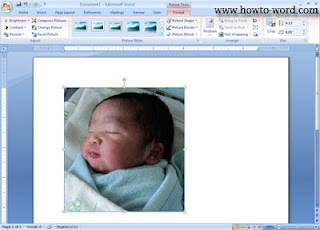
5. Then your Word 2007 will look like this..


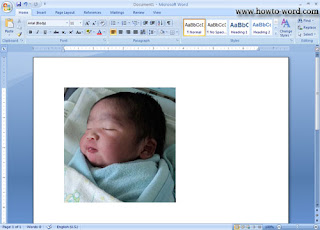
Note: If you click on any white area, your Word 2007 will look like this.. So you just click on the photo to turn  your Word 2007 be like the above picture.

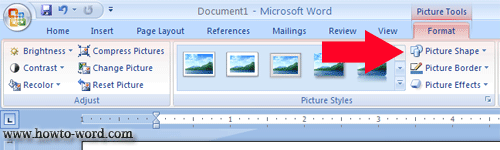
6. As step 5 (Or when you click on the photo) you will see the 'Format' tab look like this. Then you click on the 'Picture Shape' as show in the picture below.

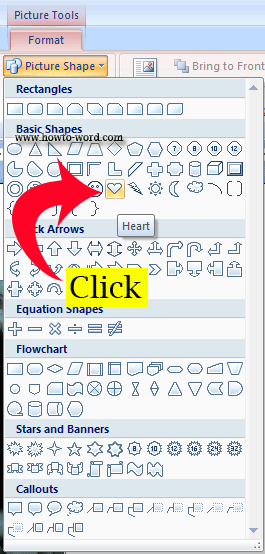
7. Once you click on 'Picture Shape' you may notice that there are a lot of shapes there in a Picture Shape gallery. But as we are going to make a photo in heart shape so we select 'Heart' as show in the picture.
(Under the 'Basic Shapes' group)

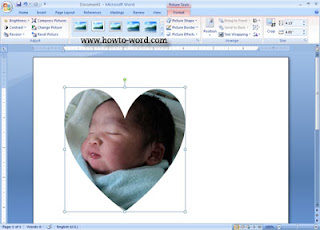
8. Now your picture will immediately look like this..

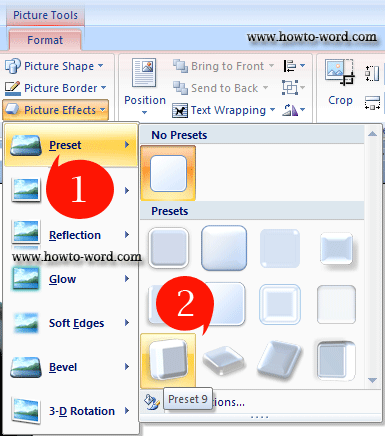
9. Finish? No, not yet. To make it more cool you have to go to the 'Picture Effects', click on it and just move the mouse over 'Preset', Word 2007 will automatically show you a 'Presets' gallery. Now just select the 'Preset 9', click it.

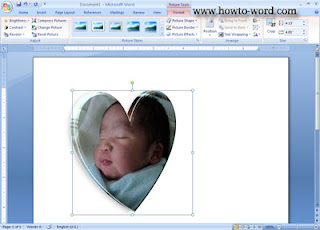
10. Then your Word 2007 will turn this!!
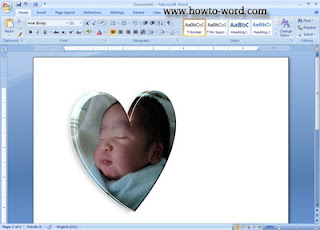
Note: If you click anywhere outside the photo your Word 2007 will look like this!! If you don't want to have a shadow for your image, we can say that our project now is complete. But to learn more how to add shadow for image, you have to continue read more ^^ (so you need to click on the image again to your photo be as the above.-- if it doesn't work, double click it!!)

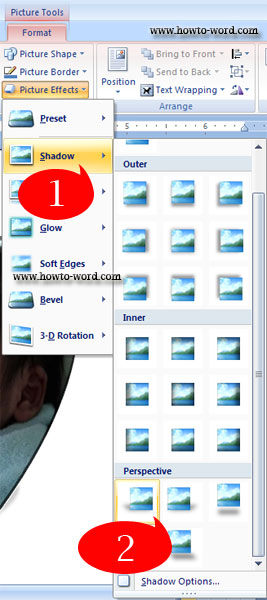
11. Now your picture be like step 10 (your photo already be selected). Under 'Picture Effects' move your mouse over 'Shadow' then under 'Perspective' click the first icon as its name 'Perspective Diagonal Upper Left', click on it.

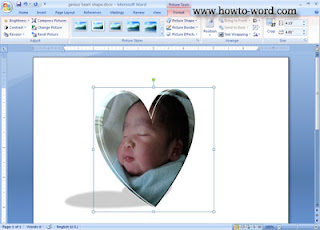
12. Then you got this picture...

13. Click any white area outside the picture, you got this picture..and finished!!

That's all for how to do a photo in heart shape in Word 2007!! ^^


Frequently Asked Questions

         
How to remove paragraph symbol in word? Help!! Try fixing it but my vertical ruler still disappear!!  
         
What is the ribbon in Microsoft Word?